

Key Takeaways
- Router placement is the single biggest factor in whole-home Wi-Fi coverage quality.
- Band steering and channel congestion are common hidden causes of slow or unstable connections.
- Mesh systems distribute signal more evenly than range extenders in most multi-room homes.
- Physical obstructions like concrete walls and appliances can significantly degrade wireless performance.
- Simple diagnostic steps can pinpoint whether your issue is router-side or ISP-side.
Why Dead Zones and Dropped Connections Happen
Most home Wi-Fi problems trace back to a handful of root causes: poor router placement, outdated hardware, overcrowded channels, or a mismatch between your network setup and your home's physical layout. Understanding which factor is at work lets you fix the right thing instead of guessing.
Radio signals weaken with distance and are absorbed or reflected by physical materials. A router positioned at one end of a long house, or on the ground floor of a multi-story home, simply cannot deliver consistent signal everywhere. Similarly, a network overloaded with smart home gadgets, streaming devices, and work laptops behaves sluggishly even when the hardware is adequate. If you're exploring the broader world of connected devices and how they interact with your network, the Smart Home Tech hub is a useful starting point.
Wi-Fi Channels and Interference Explained
Wi-Fi operates on radio frequencies divided into channels. In dense neighborhoods, multiple routers using the same channel compete for airspace, causing interference and slowdowns. Most modern routers offer an 'auto' channel selection that picks the least congested option - but manually setting a channel using a free Wi-Fi analyzer app can sometimes yield better results. The 5 GHz band has far more non-overlapping channels than 2.4 GHz, making it less prone to neighborhood congestion.
Proven Practices for Better Home Wi-Fi Coverage
The following approaches address the most common and impactful causes of poor home wireless performance. Apply them in order - starting with placement and hardware basics before moving to network configuration.
Position your router centrally and at elevation, away from walls and appliances.
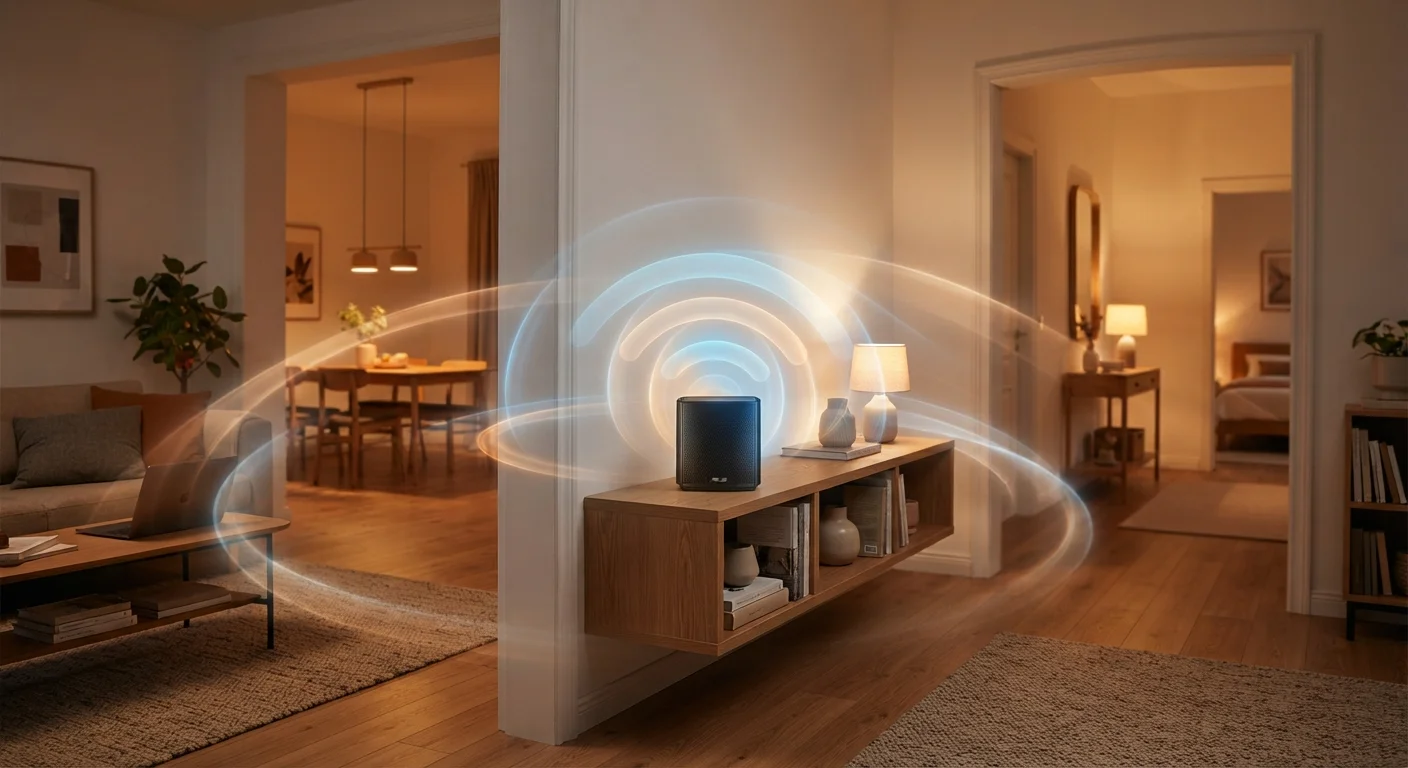
Wi-Fi signals radiate outward in all directions. A router shoved in a corner or closet wastes most of that signal on areas you don't use. Placing it at a central, elevated location - such as a high shelf in a central hallway - maximizes even distribution. Metal appliances, microwaves, and thick concrete walls all absorb or reflect signal, creating dead zones.
Use the 5 GHz band for high-bandwidth devices and 2.4 GHz for devices far from the router.
The 2.4 GHz band travels farther and penetrates walls more easily but offers less speed and is more prone to interference. The 5 GHz band delivers faster throughput over shorter distances. Matching devices to the appropriate band reduces congestion and improves performance for everything on the network.
Switch to a mesh network system if you have a multi-story or large-footprint home.
Traditional range extenders create a separate network node that devices must switch between manually, often causing lag and dropped connections. Mesh systems use multiple access points that share a single network name and hand off devices seamlessly. This makes them far more effective in homes where a single router cannot reach every room. For a deeper look at the trade-offs, see the comparison of mesh versus traditional routers.
Reboot your router regularly and keep its firmware up to date.
Routers accumulate active connections over time, and memory leaks or stale routing tables can slow performance noticeably. A weekly scheduled reboot - set through most routers' admin panels - clears this. Firmware updates from manufacturers also patch security vulnerabilities and often include performance improvements that affect signal stability.
Audit which devices are connected and separate smart home devices onto a dedicated VLAN or guest network.
A crowded network with dozens of simultaneous devices - smartphones, laptops, cameras, smart bulbs - increases congestion and can cause instability for all of them. Isolating low-bandwidth smart home devices onto a separate network segment keeps them from competing with high-demand devices. For more on building a robust foundation, the guide on setting up a home network for smart devices walks through this in detail.
Quick Steps You Can Take Right Now
You don't need new hardware to start improving your home network. These immediate actions address the most common quick-fix opportunities and can be completed in under an hour.
If the issue turns out to be poor indoor cellular reception rather than Wi-Fi, a separate set of solutions applies - including Wi-Fi calling and signal boosters, covered in the guide on what to do when your carrier's signal fails at home.
When to Look Beyond Your Router
If repositioning, rebooting, and updating firmware don't resolve persistent problems, the issue may lie upstream. Run a wired speed test - connecting a laptop directly to your modem via Ethernet - to isolate whether the problem is with the ISP connection itself or your in-home wireless setup. If wired speeds match what your plan promises but wireless speeds lag far behind, the router or its placement is the bottleneck. If wired speeds are also low, contact your ISP.
Check Your ISP's Equipment First
Before investing in new hardware, confirm whether your current modem or gateway is the limiting factor. ISP-supplied equipment is often entry-level and may not support current Wi-Fi standards. If your router is more than four or five years old, it may predate Wi-Fi 6 (802.11ax), which handles dense device environments significantly better than older standards. Ask your ISP whether a newer gateway is available or whether you're eligible to use your own equipment.
Understanding the wireless protocols your smart home devices use can also help you make sense of interference patterns. Not every device in your home uses standard Wi-Fi - some use Zigbee, Z-Wave, or Thread. The article on wireless protocols powering smart homes explains how these coexist and where conflicts can arise.
30-50%
Signal loss through a single interior wall
According to general RF engineering guidance, standard drywall can attenuate 2.4 GHz Wi-Fi signals by 30-50%, with concrete or brick causing substantially greater losses.
25+
Average connected devices per U.S. household
Research from Deloitte and similar technology surveys consistently finds American households managing more than two dozen connected devices, increasing router load significantly.
“The biggest Wi-Fi mistake homeowners make is treating router placement as an afterthought. Signal physics don't bend to convenience - your network performs best when you design around the layout of your space, not around where the cable happens to come out of the wall.”
— A senior network engineer, Residential broadband infrastructure specialist